



Support: How to Sign In with BrickHouse GPS Connect for the First Time
BrickHouse GPS Connect lets you sign in to Locate with an account you already use: your Google or Microsoft account, or your company's own sign-in. Before the BrickHouse GPS Connect button will work, you need to link that account to your Locate account one time. This guide walks you through it in a few minutes.
In short:
- Sign in to Locate with your Locate username and password.
- Link your Google, Microsoft, or company account in User settings.
- From then on, sign in with the BrickHouse GPS Connect button.
If you click BrickHouse GPS Connect before linking your account, the sign-in won't go through. That's expected, and linking fixes it.
Before you start
You'll need two things:
- Your Locate username and password. These were sent to you by email when your Locate account was set up. If you can't find them, use Forgot your password? on the sign-in page or contact BrickHouse support.
- The account you want to link. This is a personal Google or Microsoft account, or the work email you use for your company's sign-in.
Step 1: Sign in to Locate and open User settings
- Go to locate.brickhousegps.com.
- Enter your Locate username and password, then click Log in. Don't use the BrickHouse GPS Connect button yet.
- Click your username in the top-right corner.
- Click User settings.
- In the User settings window, open the Security tab.
- Under Additional authorization methods, click BrickHouse GPS Connect (it may be labeled Log into account).
A sign-in window opens asking for your email address. What you do next depends on the account you're linking: follow Option A for a personal Google or Microsoft account, or Option B for your company's sign-in.
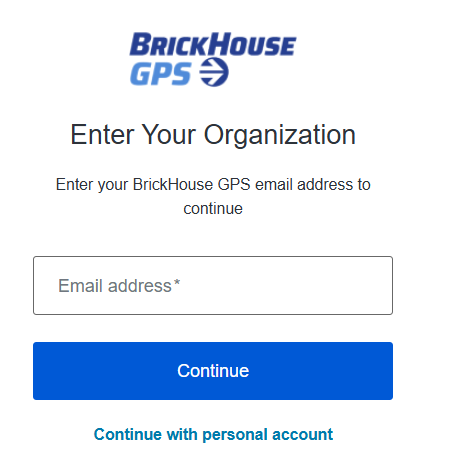
Option A: Link a personal Google or Microsoft account
BrickHouse GPS Connect supports personal Google and Microsoft accounts.
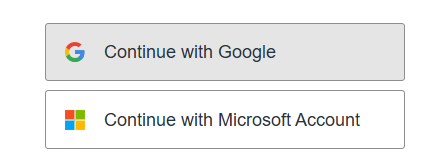
- In the Enter Your Organization window, don't type an email address. Click Continue with personal account below the Continue button.
- Click Continue with Google or Continue with Microsoft Account.
- Sign in to your Google or Microsoft account and follow any prompts, such as a verification code.
- When you return to Locate, the Security tab shows your linked account. Click OK to save.
- When asked to reload the page, click OK.
Your Google or Microsoft account is now linked. Skip to Signing in after your account is linked.
Option B: Link your company (enterprise) account
If your company set up BrickHouse GPS Connect with its own sign-in (for example, Okta or Microsoft Entra ID), check your company's internal instructions or IT team first. They may have specific steps or need to grant you access before you can link.
- In the Enter Your Organization window that opened from the BrickHouse GPS Connect button, enter your work email address.
- Click Continue.
- You're taken to your company's sign-in page. Sign in as you normally do at work, including any extra verification such as a code from an authenticator app.
- When you return to Locate, the Security tab shows your linked account. Click OK to save.
- When asked to reload the page, click OK.
Your company account is now linked to Locate.
Signing in after your account is linked
Once your account is linked, you can skip your Locate password and sign in with one click.
- Go to locate.brickhousegps.com and click BrickHouse GPS Connect.
- Choose the same way you linked:
- Google or Microsoft: click Continue with personal account, then Continue with Google or Continue with Microsoft Account.
- Company account: enter your work email address and click Continue.
- If asked, sign in to your Google, Microsoft, or company account. You're then taken straight into Locate.
Your Locate username and password still work too, so keep them somewhere safe.
Unlinking your account
You can remove the link at any time, for example, if you want to switch to a different Google, Microsoft, or company account. You'll need to sign in to the linked account one last time to confirm.
- Sign in to locate.brickhousegps.com with your Locate username and password, or with BrickHouse GPS Connect.
- Click your username in the top-right corner, then click User settings.
- Open the Security tab.
- Under Additional authorization methods, click Remove connection.
- In the sign-in window, confirm the account you're removing:
- Google or Microsoft: click Continue with personal account, then choose Google or Microsoft.
- Company account: enter your work email address and click Continue.
- Sign in to that account if prompted. The Additional authorization methods section clears, showing the link was removed.
- Click OK to save, then click OK again to reload the page.
After unlinking, BrickHouse GPS Connect won't work until you link an account again. You can still sign in with your Locate username and password.
Troubleshooting
Still stuck? Contact BrickHouse support or call or text (800) 654-7966, and let us know which account type you're trying to link.
Jan 31st 2024