



Support: How to Use BPS in Spanish (Cambiar BPS a español)
BPS is now available in Spanish. You can switch the menus, buttons, settings, and messages from English to Spanish, and switch back at any time. This guide shows you two ways to do it in under a minute.
In short:
- On the login page, choose Español from the Language menu before you log in.
- Or, once you're logged in, go to Settings > Display Preferences and change Language to Español.
Your tracker data, locations, trips, and geofences don't change. Only the language of the screens changes.
Before you start
You'll need:
- Your BPS email and password. If you don't remember your password, click Forgot password? on the login page.
- A web browser. The steps and screenshots below show BPS in a web browser.
Option 1: Choose Spanish on the login page
Use this if you want BPS in Spanish from the moment you log in.
- Go to the BPS login page.
- Click the Language menu below the Password field. It shows No items selected until you pick one.
- Check Español.
- Click Guardar (Save). The login page switches to Spanish.
- Enter your email and password, then click Login.
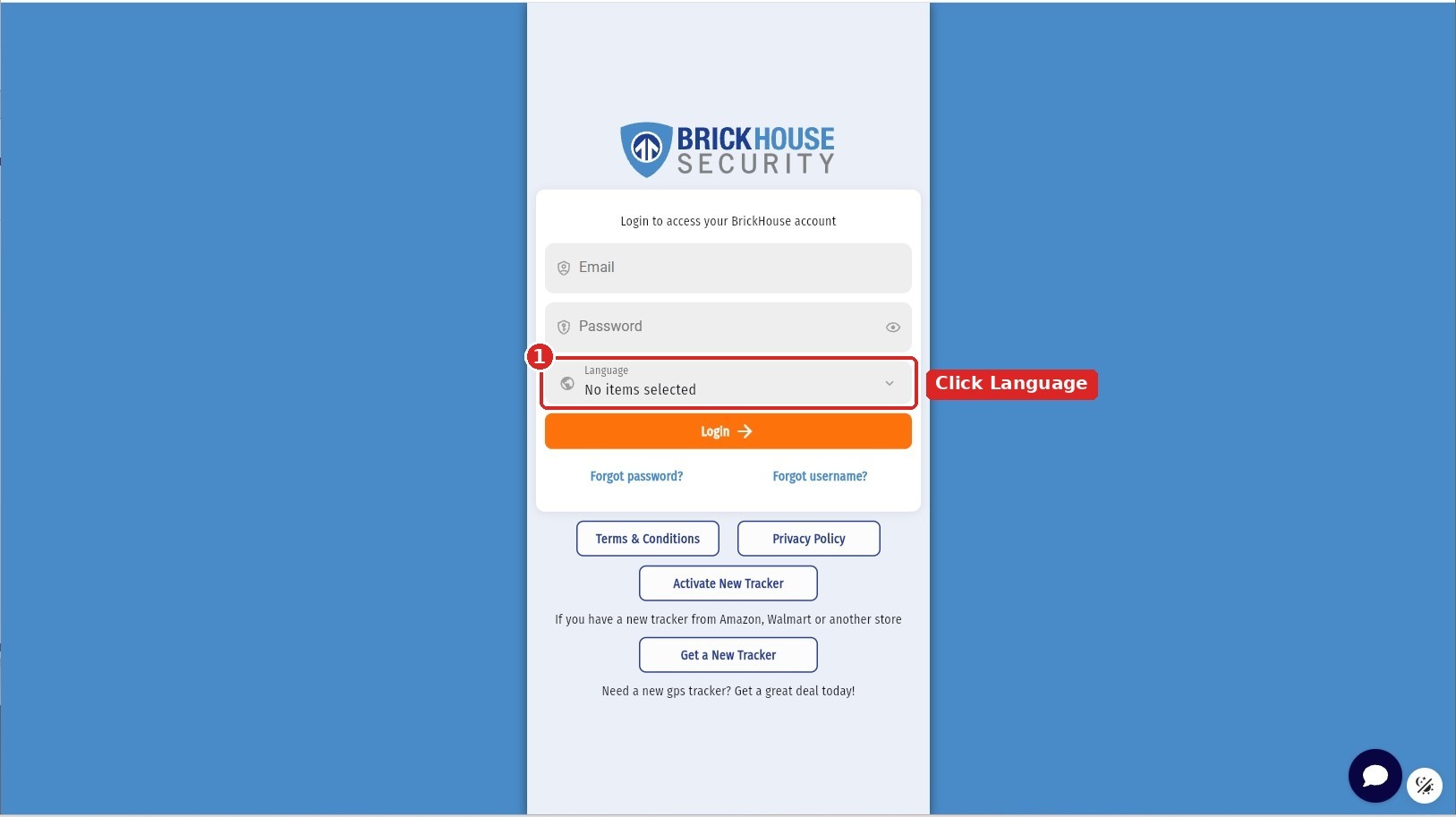
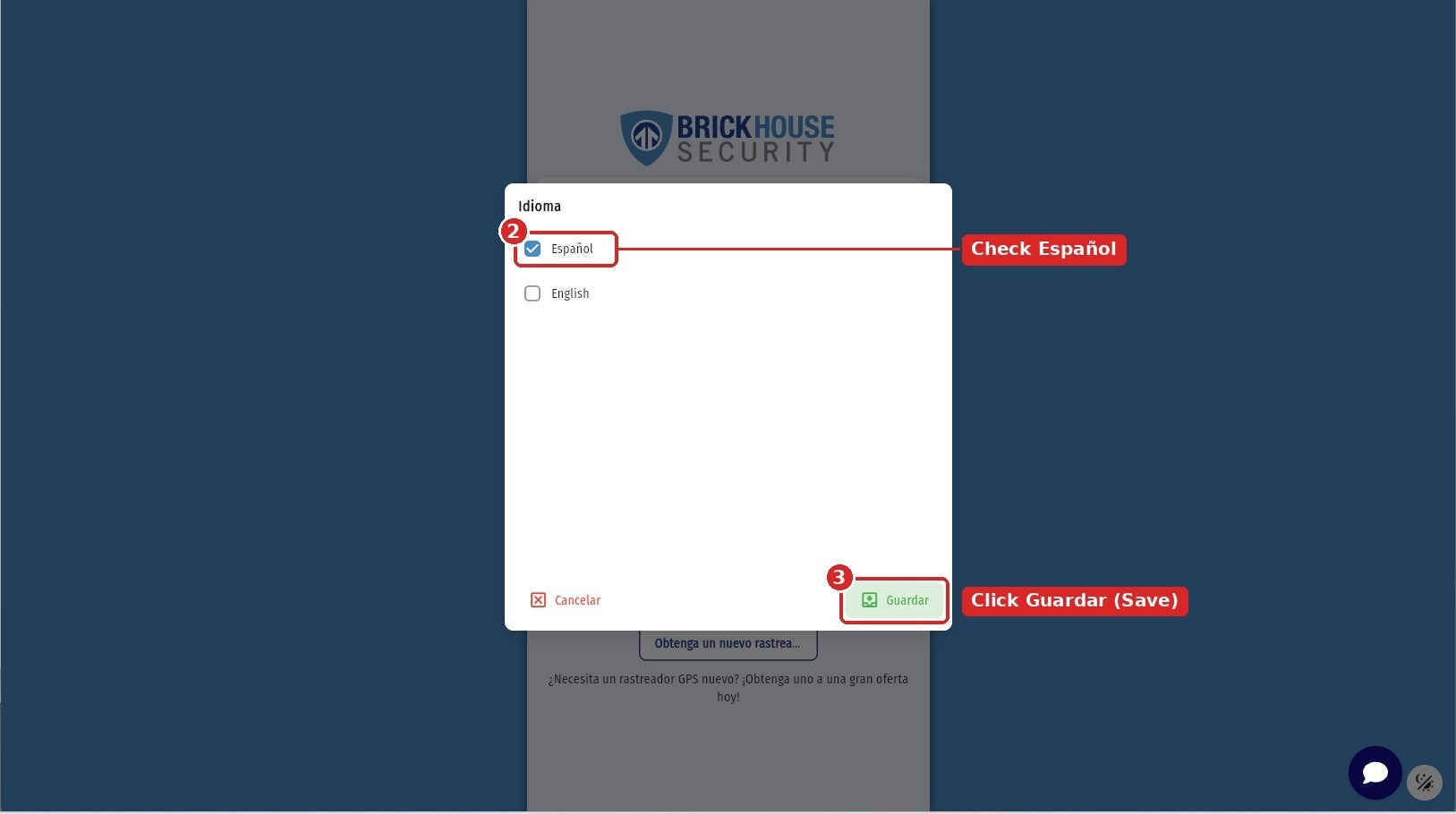
To cancel without changing anything, click Cancelar (Cancel).
Option 2: Change the language in Settings
Use this if you're already logged in, or to switch back to English later.
- Open the menu in the top-left corner and click Settings.
- Click Display Preferences.
- Click the Language menu and choose Español.
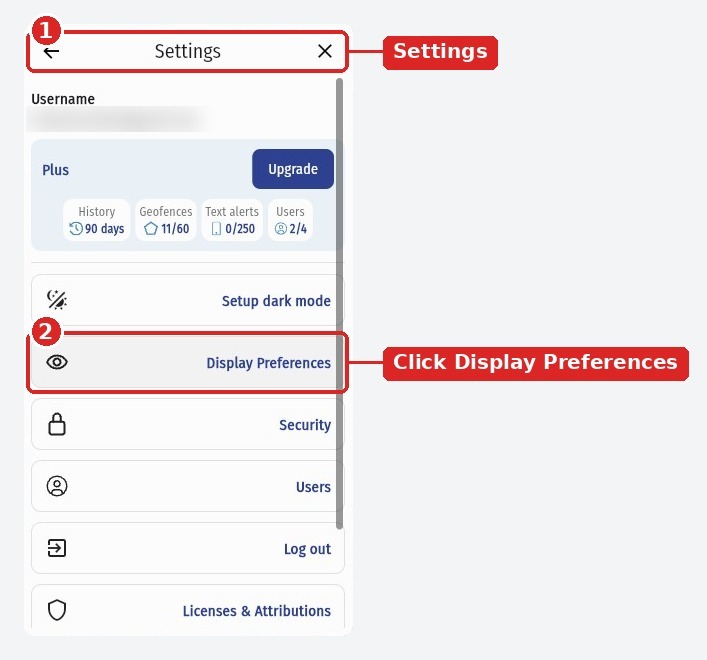
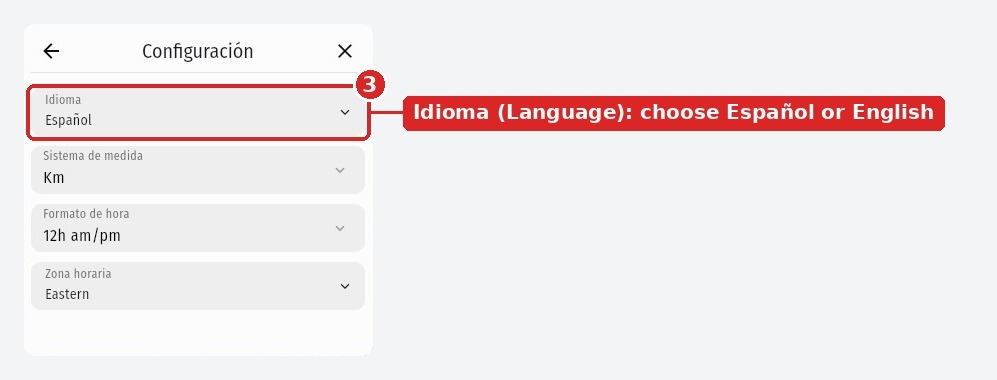
BPS switches to Spanish right away. In Spanish, this screen is called Configuración, and Language shows as Idioma.
On the same screen, you can also set your Measurement system (Sistema de medida), Time format (Formato de hora), and Time zone (Zona horaria).
To switch back to English: go to Configuración > Idioma and choose English.
What stays in English
A few areas open outside BPS or contain legal text, so they stay in English for now:
- Feedback form. The button that opens it is in Spanish, but the form itself is in English.
- Licenses & Attributions in Settings.
- Terms & Conditions and Privacy Policy pages linked from the login page.
Street names and places on the map come from Google Maps and follow the map's own labels.
Troubleshooting
Mar 20th 2024