



Support: Spark Nano 7 GPS Tracker Manual and FAQs
Spark Nano 7 GPS is a compact and powerful tracking device designed to provide accurate real-time location data for a wide range of applications. Whether you're monitoring a vehicle, tracking valuable assets, or ensuring the safety of loved ones, the Spark Nano 7 offers unparalleled reliability and ease of use.
Equipped with 4G cellular technology, it ensures seamless connectivity and fast data transmission, giving you up-to-the-minute information on the go. Its small size and durable design make it easy to hide and protect against harsh environments, ensuring continuous operation in any situation.
Instructions for Using the Spark Nano 7 GPS Tracker
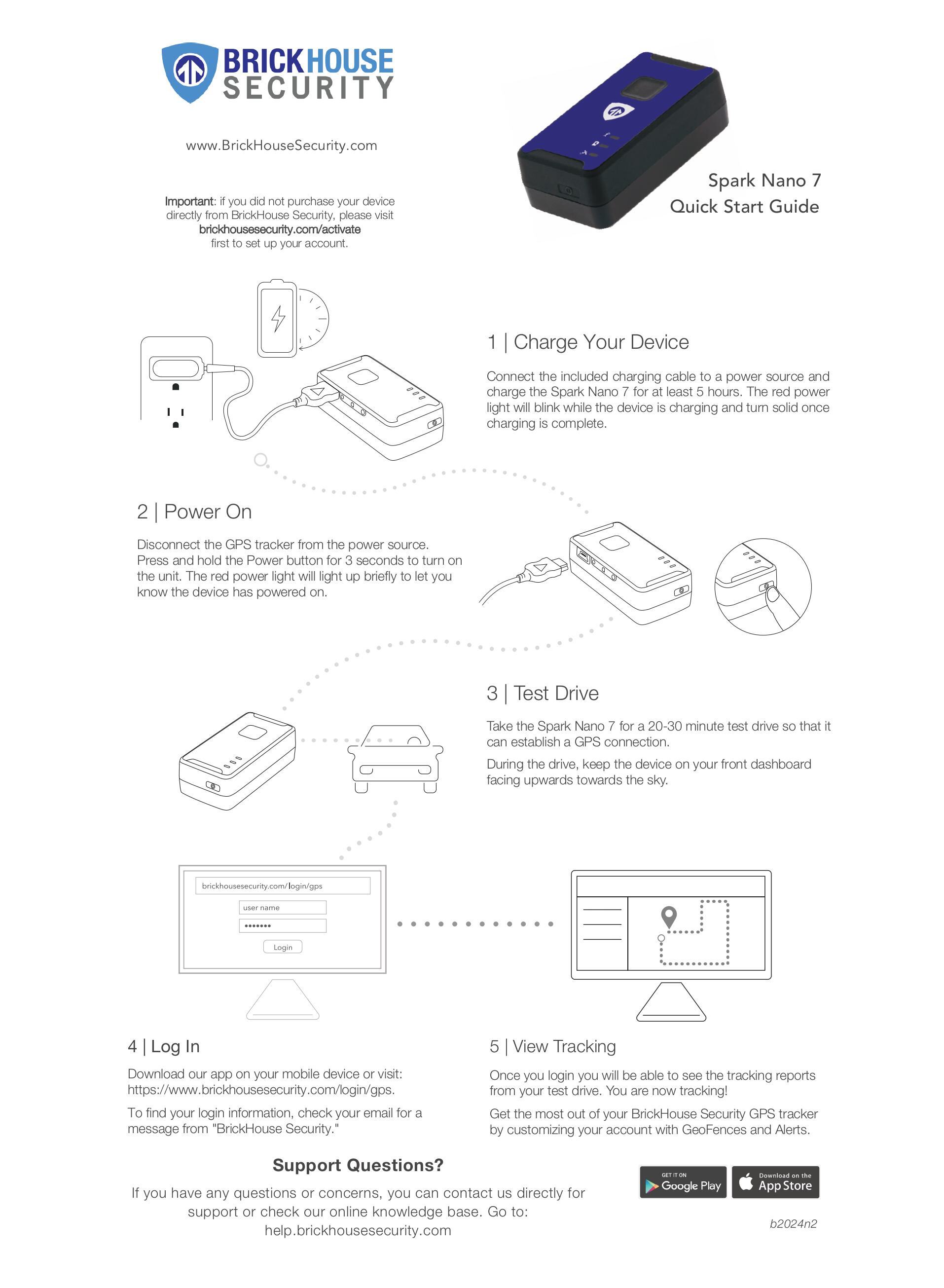
1. Charging
- Connect the included charging cable to a power source and charge the Spark Nano 7 for at least 5 hours.
- The red power light will blink while the device is charging and turn solid once charging is complete.
2. Power
- Disconnect the GPS tracker from the power source.
- Press and hold the Power button for 3 seconds to turn on the unit.
- The red power light will light up briefly to let you know the device has powered on.
3. Test Drive
- Take the Spark Nano 7 for a 20-30 minute test drive so that it may establish a GPS connection.
- During the drive, keep the unit on your front dashboard facing upwards towards the sky.
4. Log In
- Using a web browser, visit brickhousesecurity.com/login/gps OR open the app on your mobile device.
- Check your email account for an email with the subject “Important: Your Password for GPS Login” to find your login information.
5. View Tracking
- Once you log in, you will be able to see the tracking reports from your test drive.
- You are now ready to begin tracking!
- Get the most out of your BrickHouse Security GPS tracker by customizing your account with Geofences and Alerts.
Download User Manual
Quick Start Guide
Device LED Description
| LED Type | Color | Status | Meaning |
|---|---|---|---|
| Cell LED | Green | Fast flash | The device is searching for a network |
| Slow flash | The device is registered on the network | ||
| Off | The modem is not connecting to the network | ||
| Power LED | Red | Solid | The charging cable is connected; charging is complete |
| Flashing | The charging cable is connected; the device is currently charging | ||
| Flashing (on power on/off) | The indicator flashes when powering on or off | ||
| Slow blinking | Low power alert | ||
| Off | Normal operation (power light not on) | ||
| (Note) | If the device hasn’t been charged in a while, the red light may take time to appear | ||
| (Note) | Allow up to 6 hours of charging if the light doesn’t appear immediately | ||
| GPS LED | Blue | Fast flash | Attempting to find a GPS fix |
| Intermittent solid blink | GPS fix found; acquiring location to send | ||
| Slow steady blink | Potential problem getting a GPS fix |
FAQs
Having trouble logging in? Can't find the email containing your username and password?
Please visit brickhousesecurity.com/login/gps and enter your email address, then click Next. Select Forgot your password?, and a pop-up message will appear directing you to check your email. Open the email you received and follow the instructions to reset your password. After resetting your password, you'll be able to log in using your updated credentials.
How do I track on a mobile device?
You can track the device using the BrickHouse Locate GPS app or the BrickHouse BPS app, both available for iOS and Android devices.
When I log in, I don’t see my device. Why?
Your device may not have established a GPS connection yet. If you have already test-driven the unit and it is still not tracking:
- Take the device outside.
- Turn off the tracker. (Press the power button twice, holding the button down on the 2nd press until you see the blue LED.)
- Wait 30 seconds and turn it back on.
- Press the SOS button to request a location.
- Check your account to see if the device has updated.
Related Articles
- Locate GPS Tracking Platform
- BrickHouse BPS Tracking Platform
- Downloads For Android and Apple devices
- Managing Your Subscription Billing
- Activate a Tracker
- Placing a GPS Tracker
BrickHouse Locate GPS Tracking Platform
For comprehensive guidance on using the tracking platform, please refer to the dedicated support articles below:
-
Support: Locate GPS Site Guide
To view the complete and detailed guide for accessing and managing the tracking platform via the web interface, please visit the following link:
Access the full Locate GPS Site Guide -
Support: Locate GPS App Guide
For a thorough walkthrough of the Locate GPS mobile application, including setup and usage instructions for on-the-go tracking, please refer to:
Access the full Locate GPS App Guide
BrickHouse BPS Tracking Platform
(This tracking platform is designed for our B2C customers.)
For comprehensive guidance on using the tracking platform, please refer to the dedicated support articles below:
-
Support: BrickHouse BPS User Guide
To view the complete and detailed guide for accessing and managing the tracking platform via the web interface, please visit the following link:
Access the full BrickHouse BPS User Guide -
Support: BrickHouse BPS User App Guide
For a thorough walkthrough of the Locate GPS mobile application, including setup and usage instructions for on-the-go tracking, please refer to:
Access the full BrickHouse BPS App Guide
Thank you for choosing BrickHouse Security for your GPS tracking solutions. We are committed to providing you with reliable service and support.
If you require further assistance or have any questions regarding our products or services, please don’t hesitate to contact us through any of the following methods:
-
Phone: 800-654-7966
-
Live Chat: Available at BrickHouseSecurity.com
Our support team is here to help ensure you get the most out of your GPS tracking experience.
Feb 7th 2024