



Support: Configuring Notification Actions
When setting up a notification, the third step (Configure actions) lets you choose one or more automatic actions to trigger when the notification is activated.
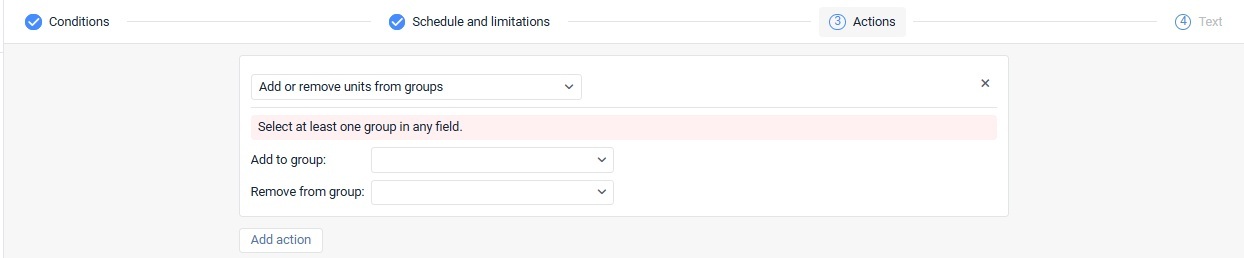
Add or Remove Units from Groups
- Choose groups from the Add to group and/or Remove from group lists.
Change Access to Units
This action updates user access rights for selected units.
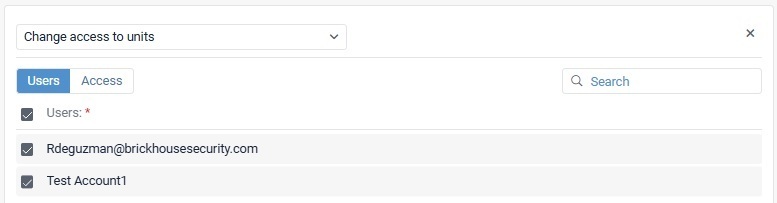
1. Go to the Users tab and select users (use search if needed).
2. Switch to the Access tab.
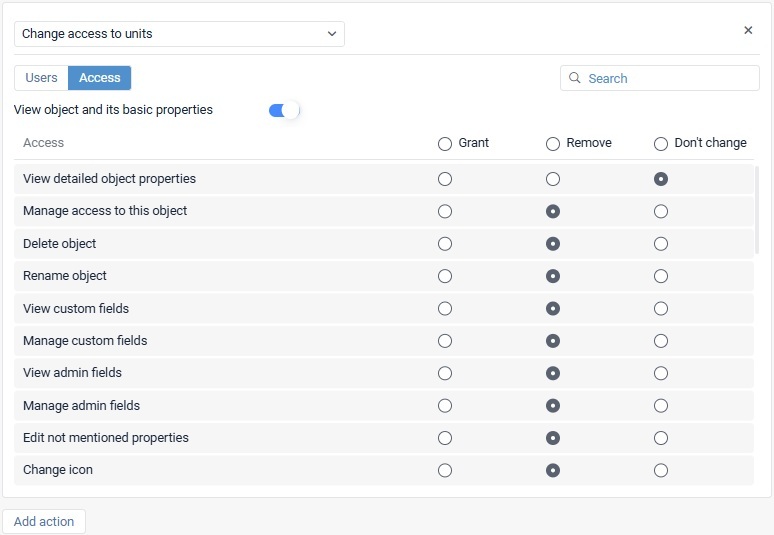
3. Decide access level:
-
- Enable View object and basic properties to grant access.
- Disable it to remove all access.
4. Fine-tune permissions using:
-
-
- Grant – give access
- Remove – revoke access
- Don’t change – keep current settings
-
? Useful for temporary access control (e.g., tracking deliveries within a geofence only).
Change Icon
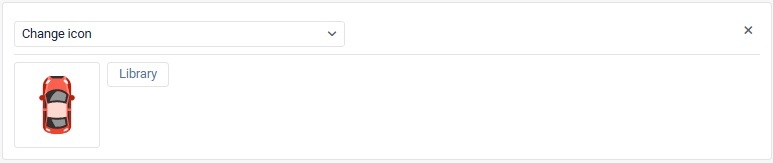
This action changes the unit’s icon when the notification is triggered.
- Click Library to choose an icon.
Create a Ride
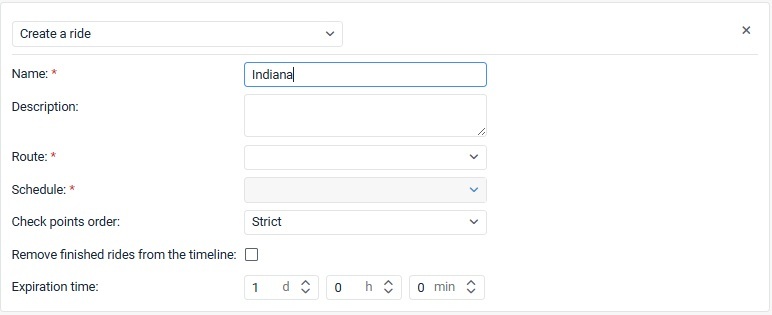
Automatically creates a new ride for a unit.
You need to configure:
- Ride name (required)
- Description (optional)
- Route (required)
- Schedule (required)
- Checkpoint rules:
- Strict
- Skipping allowed
- Arbitrary
- Optional: remove finished rides from the timeline
- Expiration time (how long after the event a ride can start)
Create Task
Creates a task when a notification is triggered.
Requirements:
- Tasks service must be enabled
- You must have required access rights
Configuration:
- Assign a user or leave unassigned
- Set priority: Low, Medium, High
The task:
- Gets “New” status
- Uses notification name as task name/type
- Shows notification text in description

Display Online Popup Notification
Shows a pop-up notification in Wialon when triggered.
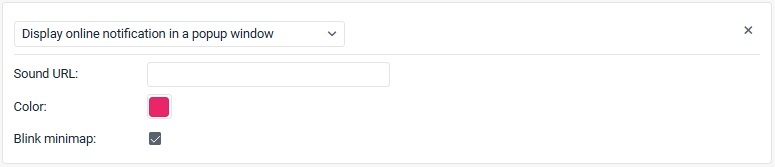
Sound URL
Plays a custom sound when a notification is triggered.
- Must be a direct link to .mp3, .wav, or .ogg
- Recommended size: under 0.5 MB
- If not set, the default sound is used
Browser support varies (Chrome, Firefox, Safari, etc.).
|
Browser |
Supported format |
|
Internet Explorer 9+ |
MP3, AAC |
|
Google Chrome 11+ |
MP3, WAV, Ogg |
|
Mozilla Firefox 12+ |
WAV, Ogg |
|
Safari 5+ |
MP3, WAV, AAC |
|
Opera 10+ |
WAV, Ogg |
Color
Customize notification appearance:
- Indicator color
- Background color
(Default is white)
Blink Minimap
Opens a mini map window showing real-time unit movement when triggered.
Notify by Email
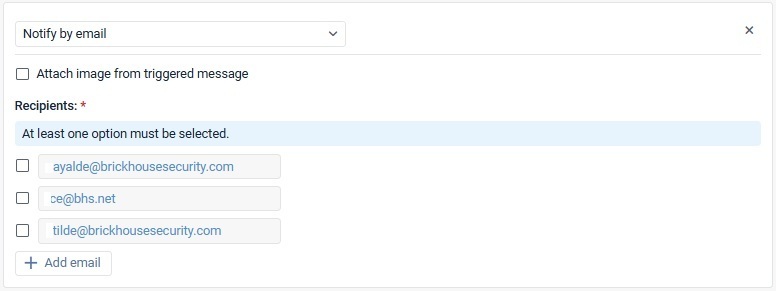
Sends notification via email.
Setup:
- Add one or more email addresses
- Enable or disable each recipient individually
- At least one recipient must be selected
? Email includes:
- Subject: notification name + unit name
- Body: notification text
Optional:
- Attach image from device message (if supported)
- Unsubscribe option (if enabled in settings)
Notify by SMS
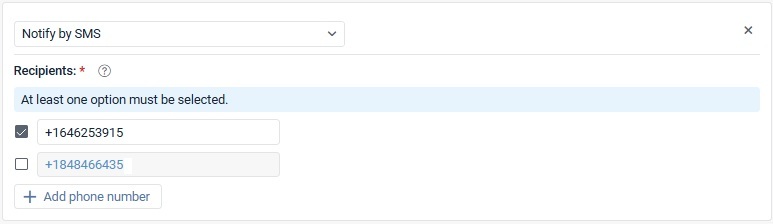
Sends notifications via SMS.
Requirements:
- SMS service must be enabled
- User must have permission to send SMS
Setup:
- Enter phone numbers in international format (e.g., +639XXXXXXXXX)
- Multiple recipients supported
Register Event for Unit
Logs an event in the unit’s history.
- Requires “Manage events” permission
- Events appear in reports
- Can be marked as a violation

Register Unit Status
Updates unit status (e.g., Business or Personal).
- Requires event management rights
- Status can be typed or selected from saved values
- Visible in event reports
Save Video as File (For Units with Video Monitoring Service)
Automatically saves video from unit cameras when triggered.
Setup:
- Enable Automatic saving in the unit video settings
- Select cameras (all or specific)
- Set duration before/after event
Notes:
- Minimum duration: 1 second
- Max duration depends on device limits
- Multiple cameras are merged into one file
Save Counter Value as Parameter
Saves mileage or engine hours into message data.
- Mileage counter
- Engine hours counter
Useful for:
- Trip reports
- Accurate tracking of usage
Send a Command
Sends a predefined command to a unit.
- Requires “Send commands” permission
- Supports text-based commands
You can:
- Enter custom message
- Save reusable command templates
- Organize messages into groups
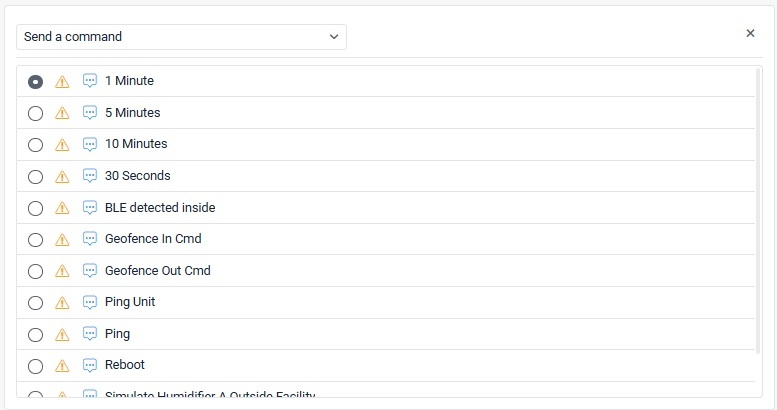
Next to the name of each command, you can see the following icons:
-
Check icon: means that all the selected units support this command;
-
Caution icon: means that not all the selected units support this command (more information in the tooltip).
Send Report by Email
Automatically sends reports via email.
- Select report template
- Choose object/unit/group
- Add recipients
- Choose file format (PDF, XLSX, CSV, etc.)
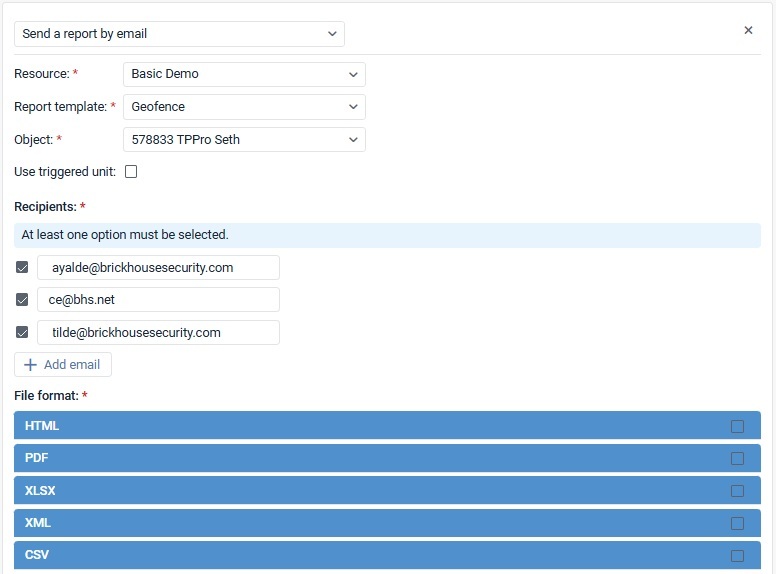
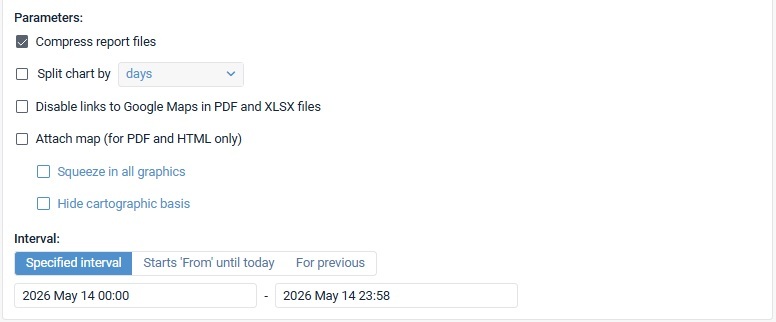
Options include:
- Attach map
- Compress files
- Include charts
- Send file or link (auto-switches for large files)
Send a Request (HTTP)
Sends data to a third-party server.
- Choose POST or GET method
- Enter server URL
- Add dynamic parameters using tags (e.g., unit, speed)
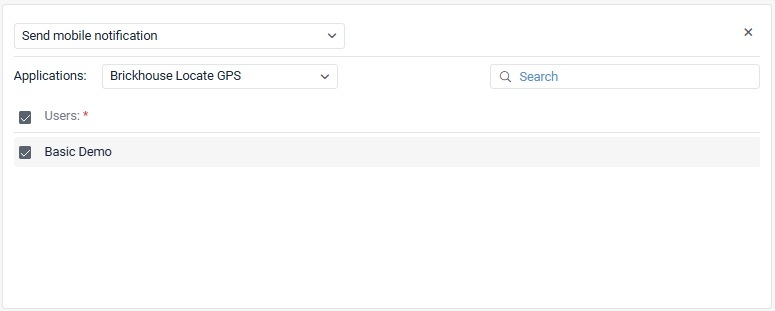
Send Mobile Notification
Sends push notifications via mobile app.
1. Ensure Users Can Receive Notifications
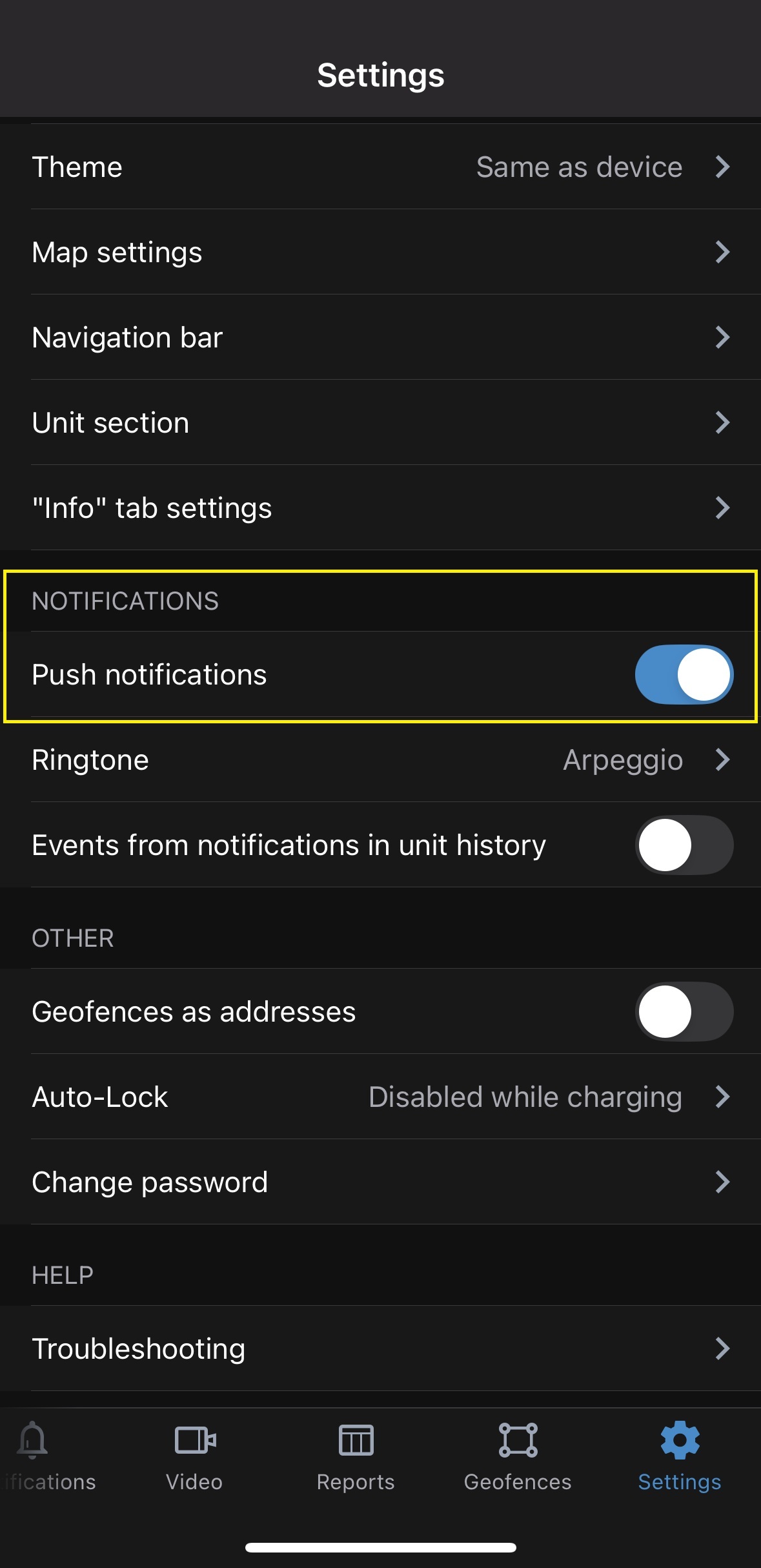
Before setting up the action, make sure that:
- Users are logged in to the mobile application
- They have enabled notifications in their app settings
? For the Locate GPS mobile app, the Push notifications option must be turned on in the settings.
2. Select the Mobile Application
- From the Applications drop-down list, choose the mobile app where the notification will be sent.
- This ensures the message is delivered to the correct platform.
3. Choose Notification Recipients
- In the users list, check the box next to each user who should receive the notification.
- Use the search bar to quickly find specific users.
- To select everyone at once, check the box next to the Users header.
Send Notification to Telegram
Sends alerts to Telegram via bot.
Supports:
- Private chats
- Public/private channels
- Groups
Requires:
- Telegram bot setup via BotFather
- Channel/group ID configuration
Send Notification to WhatsApp
Sends WhatsApp messages via Twilio.
Setup involves:
- Create WhatsApp Business Account (Meta)
- Configure Twilio (SID, Auth Token, templates)
- Configure Wialon with credentials
Then:
- Choose the sender number
- Select template
- Map system tags (e.g., %UNIT%, %LOCATION%)
- Add recipients
Separate Driver
Automatically unassigns driver(s) from a unit when triggered.
Separate Trailer
Automatically detaches trailer(s) from a unit.
Set Counter Value
Manually sets counter values (e.g., mileage, engine hours, GPRS traffic).
Configuration:
- Select counters
- Enter new values
Related Articles
Support: Locate GPS New Notification Builder
Support: Locate GPS Notification Condition Types and Combination Rules
Support: Configuring Notification Conditions
Support: Setting Notification Limits and Schedules
Thank you for choosing BrickHouse Security for your GPS tracking solutions. We are committed to providing you with reliable service and support.
If you require further assistance or have any questions regarding our products or services, please don’t hesitate to contact us through any of the following methods:
-
Phone: 800-654-7966
-
Live Chat: Available at BrickHouseSecurity.com
Our support team is here to help ensure you get the most out of your GPS tracking experience.
Oct 31st 2024