



Support: Locate GPS New Notification Builder
The updated Notifications Builder is designed to simplify notification creation while giving users more control over conditions, logic, and actions within a streamlined interface.
Creating a New Notification
- Click New on the Notifications tab.
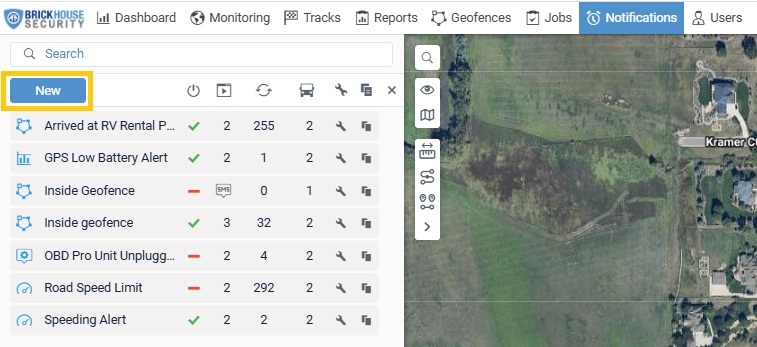
The Notifications Builder opens in a full-screen workspace for easier configuration.
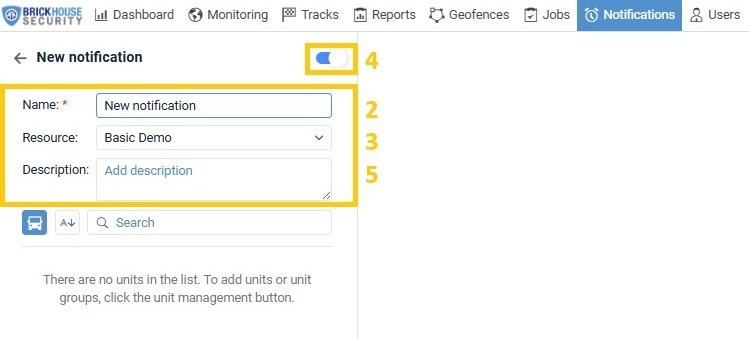
- Enter a notification name (e.g., “New Notification Test”).
- The resource is auto-assigned to your account.
- Set the notification as active or inactive using the toggle.
- Optionally, add a description for context.
Selecting Units or Unit Groups
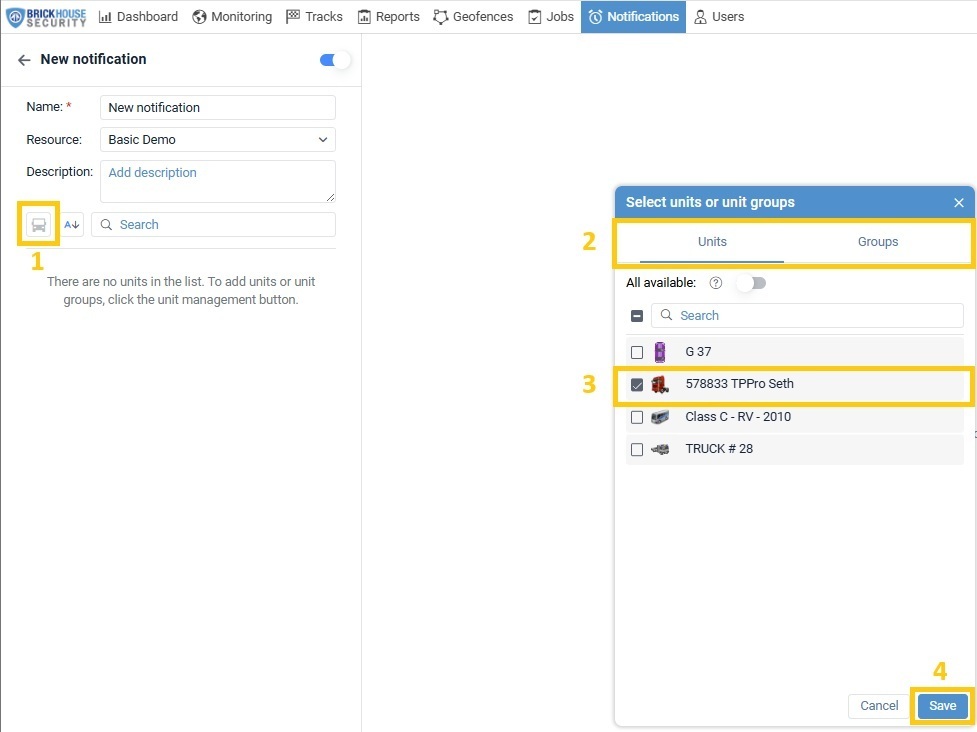
Define which vehicles or assets the notification will monitor:
- Click the vehicle icon to open the unit selection window.
- Switch between the Units and Groups tabs to locate the required assets.
- Select the relevant vehicles by checking the boxes.
- Click Save to confirm selection.
Once saved, the system directs you to the condition configuration page, where all conditions are organized into structured groups.
- Setting Up Conditions
Condition Types (Combinable vs Non-Combinable)
- Combinable conditions can be used together in a single notification and linked using AND / OR logic (e.g., ignition, geofence, temperature).
- Non-combinable conditions cannot be mixed with certain other condition types due to system limitations or logical conflicts and must be used separately.
Conditions are organized in the interface to clearly show which ones can be combined and which cannot, helping prevent invalid setups during configuration.
You can configure up to three conditions, which can be combined using AND or OR logic.
Conditions are grouped by type and by how they can interact with each other.
View Conditions and Available Combinations
After selecting units, the Condition Overview page appears. This page displays all available conditions, organized based on whether they can be combined with other conditions. Click here to view specific Combination Types and Combination Rules.
You can choose your first condition by clicking its name, though the full configuration occurs in Step 1. You may also click Next to continue.
This overview page is only available when creating a new notification and cannot be revisited once you proceed to the next step.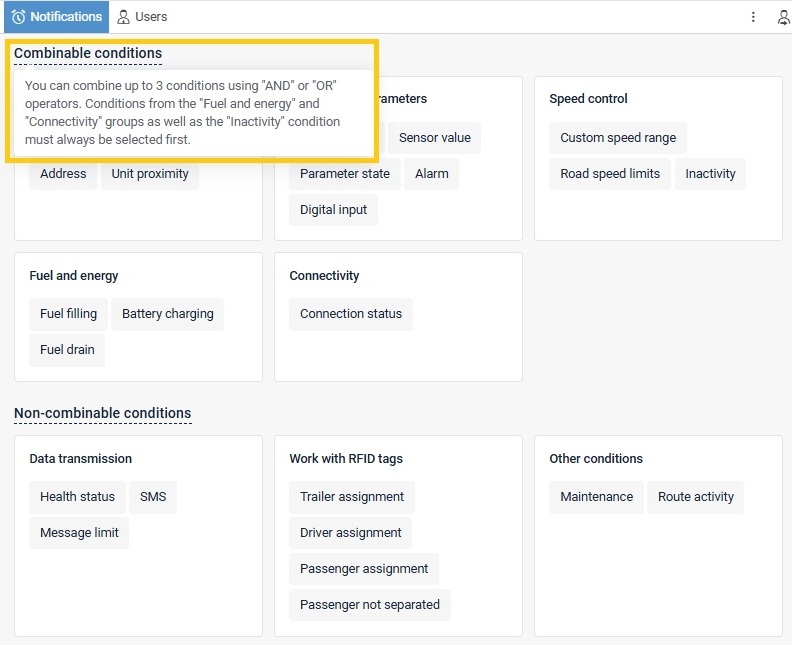
Step 1. Configure conditions
1. Select a condition when a notification should be triggered. See Configuring Notification Conditions for the full list, settings, and additional access-right requirements.
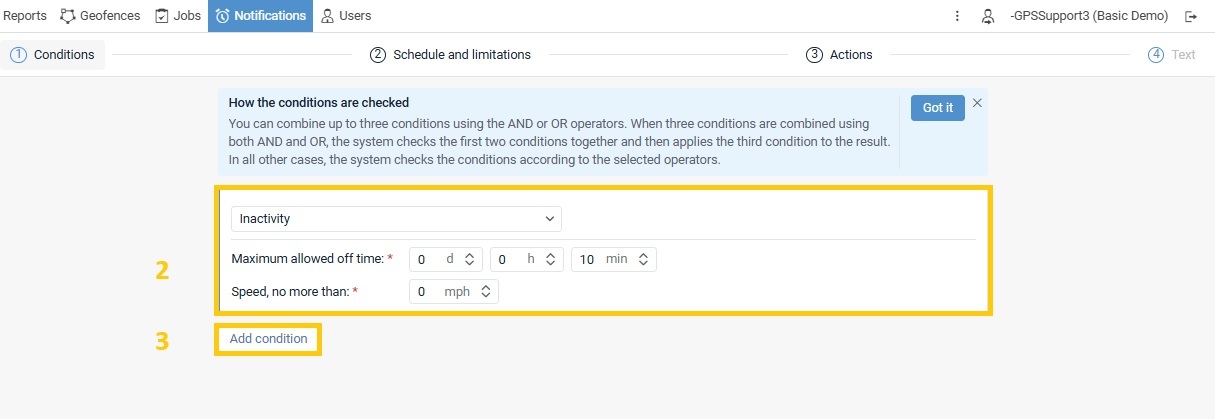
2. Configure the required and optional settings for the selected condition. Missing required settings are indicated by an icon next to the step title.
3. To add another condition, click Add condition. You can configure up to three conditions per notification. 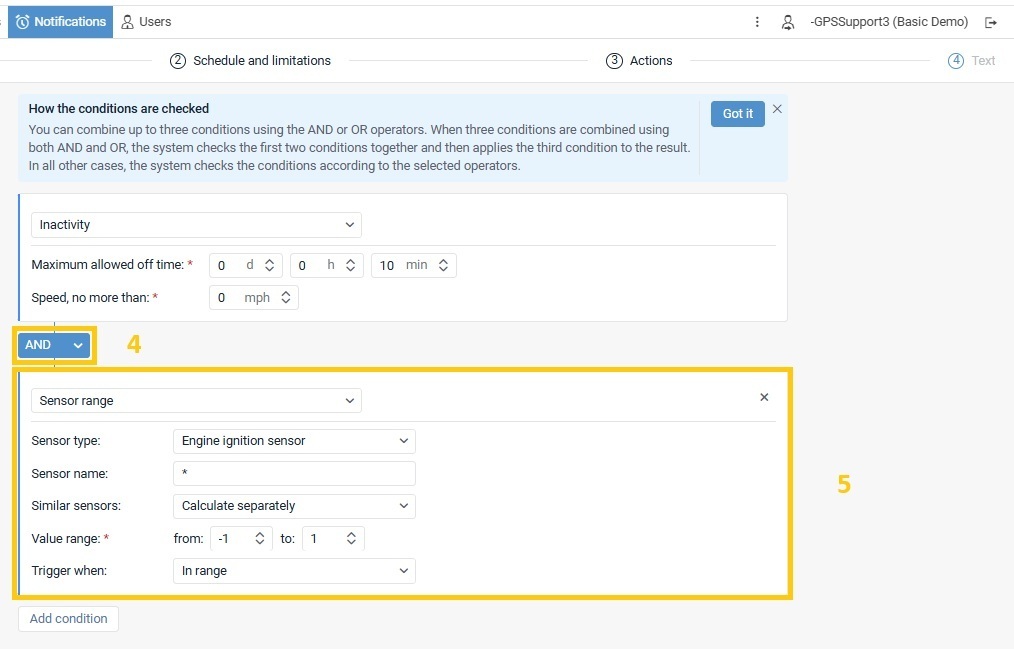
4. Choose a logical operator:
- AND – All selected conditions must be met for the notification to trigger.
- OR – Any selected condition can trigger the notification.
Important:
When combining three conditions with both AND and OR, the system evaluates the first two conditions first, then applies the third condition to that result.
- Configure any additional conditions you add, including their operators and settings.
- Click Next to continue.
Important Behavior for AND Logic
When using AND, all conditions must be true at the same time. The notification is triggered only when one condition changes from unmet to met while the other conditions are already satisfied.
Example:
If the notification requires:
- Vehicle is outside the geofence, AND
- Ignition is ON
The notification triggers when:
- The vehicle is already outside the geofence, and the ignition turns ON, or
- Ignition is already ON, and the vehicle exits the geofence.
Step 2: Set Limitations or Schedule (Optional)
Configure optional limits or scheduling rules to control when and how often the notification can be triggered. See Setting Notification Limitations and Schedule for a detailed description.
Click Next to continue.
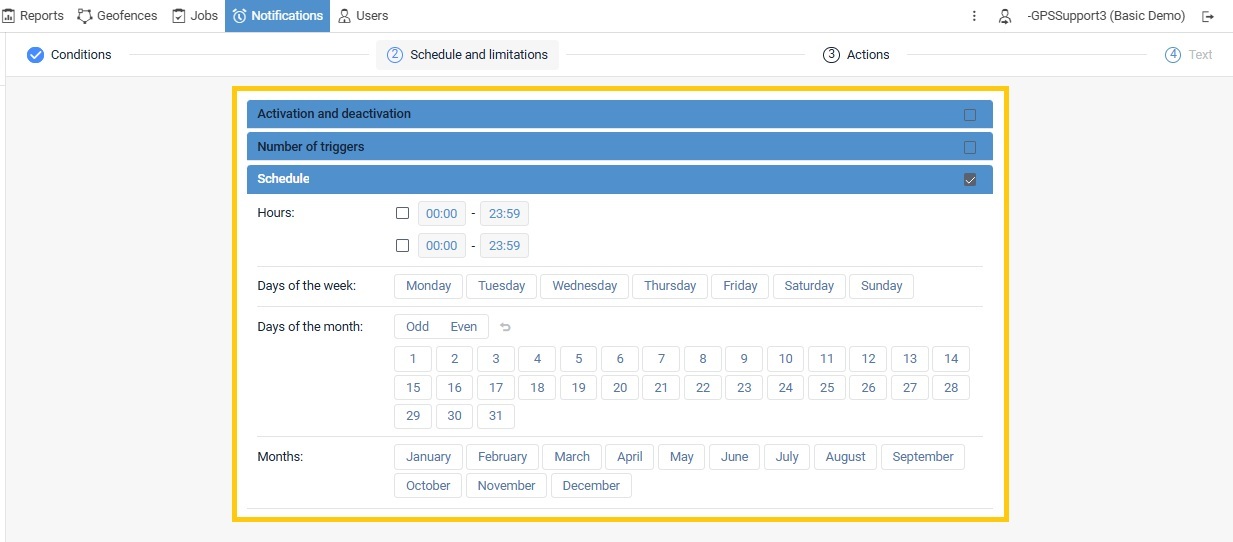
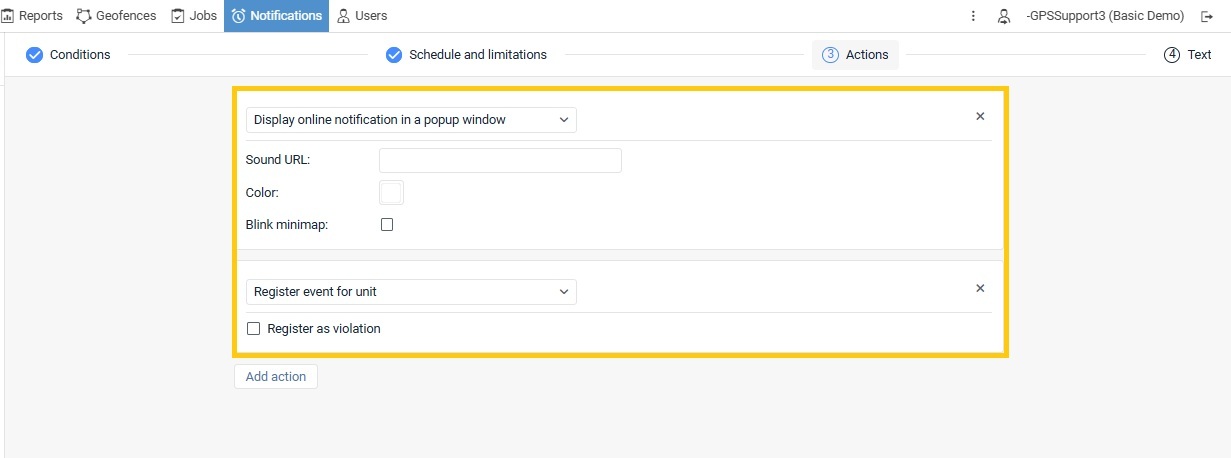
Step 3. Configure actions
Select and configure one or several actions that should be performed automatically when the notification is triggered. Some actions require additional access rights. See Configuring notification actions for a full list of actions, their settings, and required access rights.
Go to the next step by clicking Next.
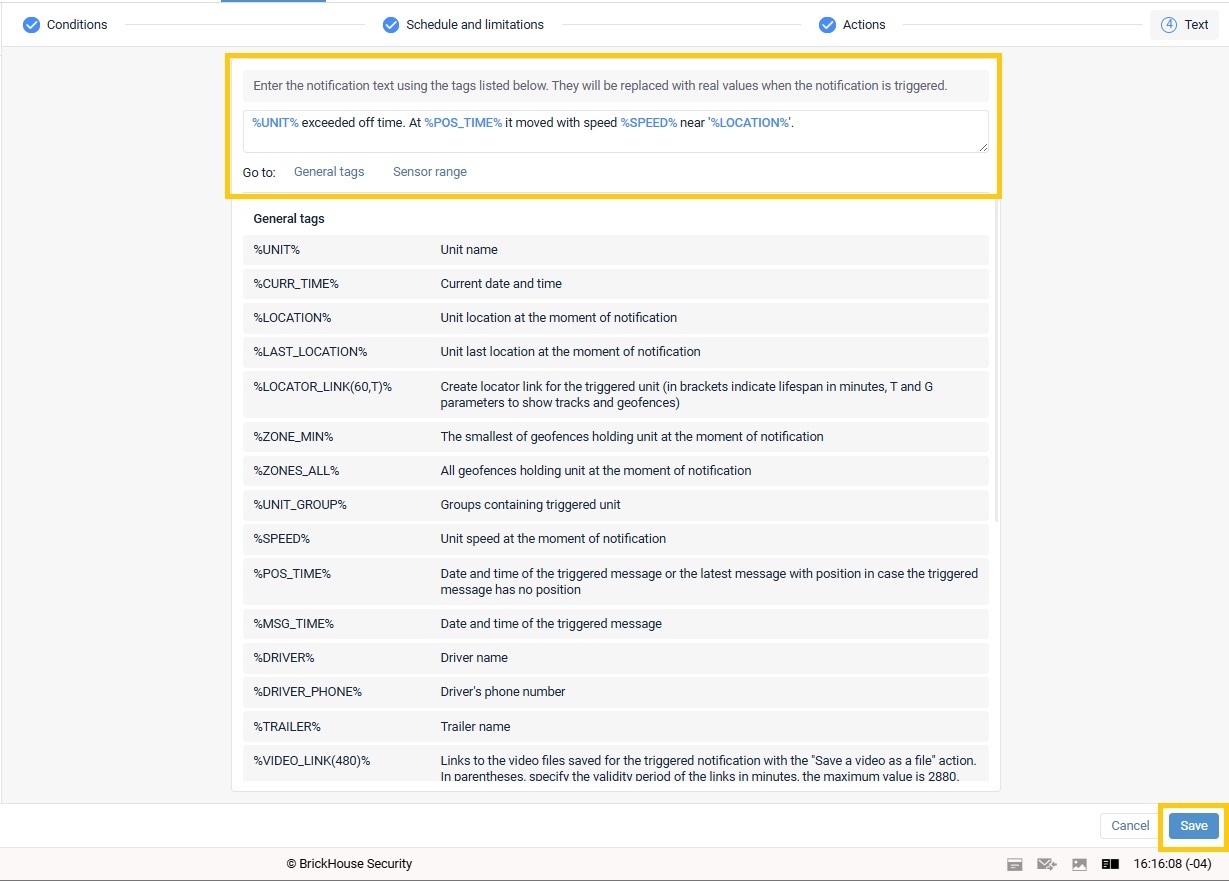
Step 4: Add Notification Text (If Applicable)
If the selected action supports custom text, enter the notification message. You can also add tags (variables) that will automatically display real-time values when triggered, based on the configured conditions.
Click Save to create the notification.
After saving, you can view, edit, or copy the notification from the Notifications tab.
Example Use Case: Cold Chain Monitoring
This scenario demonstrates monitoring perishable goods during transport to ensure proper handling and safety.
Condition Setup:
Condition 1: Ignition Status
Based on the engine ignition sensor.
Define parameters such as the ignition ON/OFF state.
Condition 2: Geofence Exit
Select one or more geofences.
Set the trigger event (e.g., vehicle exits selected geofences).
Condition 3: Temperature Sensor
Choose the temperature sensor.
Set acceptable temperature thresholds.
Define trigger conditions for abnormal readings.
Logical Operators (AND / OR)
AND Logic
When AND is used:
All selected conditions must be met for the notification to trigger.
This ensures only critical events generate alerts.
Example:
A notification is triggered only when:
Ignition is ON
The vehicle is outside the defined geofences
The temperature is outside the safe range
This setup reduces noise and ensures alerts are generated only when cargo is truly at risk.
Conditions are evaluated step by step, combining intermediate results before applying the final trigger condition.
OR Logic
When OR is used:
The notification is triggered if any one of the conditions is met.
This provides broader monitoring coverage.
Example:
A notification is triggered if:
Temperature is abnormal while the engine is running, OR
The vehicle leaves a geofence
This creates a wider alerting mechanism for operational awareness.
Time and Additional Settings
Time-based and additional configuration options are now positioned earlier in the workflow.
These settings are configured immediately after defining condition logic.
Tooltips are available to help explain updated field names and options.
Related Articles
Support: Locate GPS Notification Condition Types and Combination Rules
Support: Configuring Notification Conditions
Support: Setting Notification Limits and Schedules
Support: Configuring Notification Actions
Thank you for choosing BrickHouse Security for your GPS tracking solutions. We are committed to providing you with reliable service and support.
If you require further assistance or have any questions regarding our products or services, please don’t hesitate to contact us through any of the following methods:
-
Phone: 800-654-7966
-
Live Chat: Available at BrickHouseSecurity.com
Our support team is here to help ensure you get the most out of your GPS tracking experience.
Oct 30th 2024