



Support: Creating Geofences and Notifications on Locate GPS Web Guide
Creating a New Geofence
By setting up a geofence and creating notifications for it, the GPS device can alert you when the vehicle you are monitoring enters or exits the pre-selected area. You will be notified via text or email if the car crosses the zone.
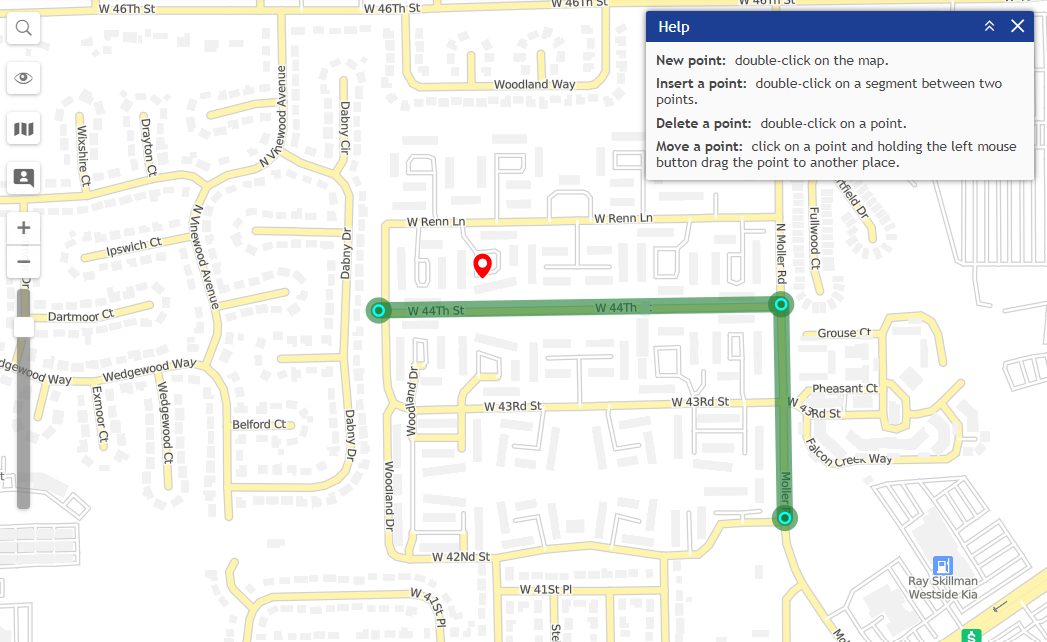
Geofences can be used to control units’ activity in these areas or, on the contrary, outside them. You can choose an image for a geofence or add a description. A geofence can have a shape of a line (for example, an avenue or any road), a polygon (a city or park, or plant), or a circle with any radius.
To set up your first geofence, please follow the steps below.
1. Log in to your GPS Account on the Desktop Site, and click on the "Geofences" Tab.
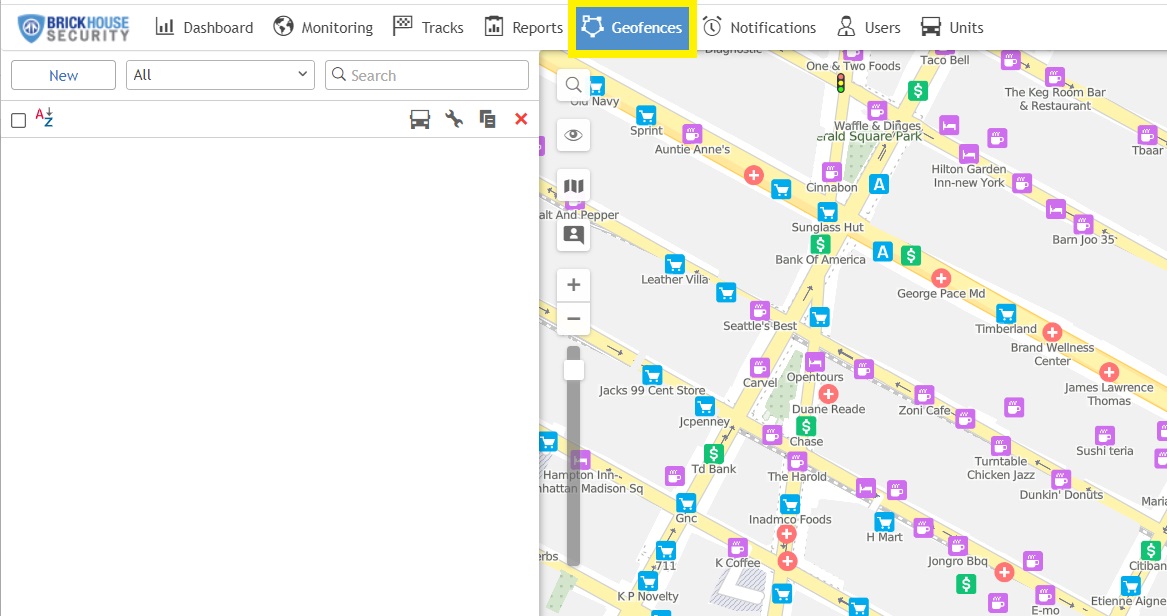
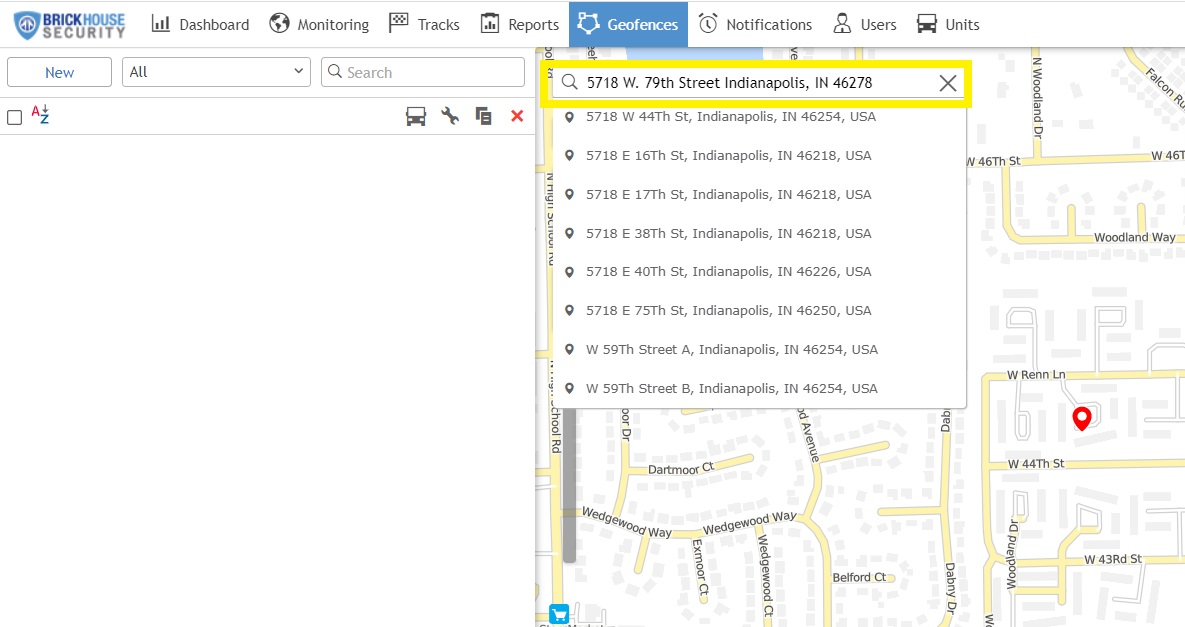
2. Click the magnifying glass icon, and type in the address.
Tip: Zoom into the area on the map where you would like to create the geofence. To get the most accurate results, be sure to center the geofence at the primary location and make it large enough to enclose the surrounding perimeter outside the fixed address.
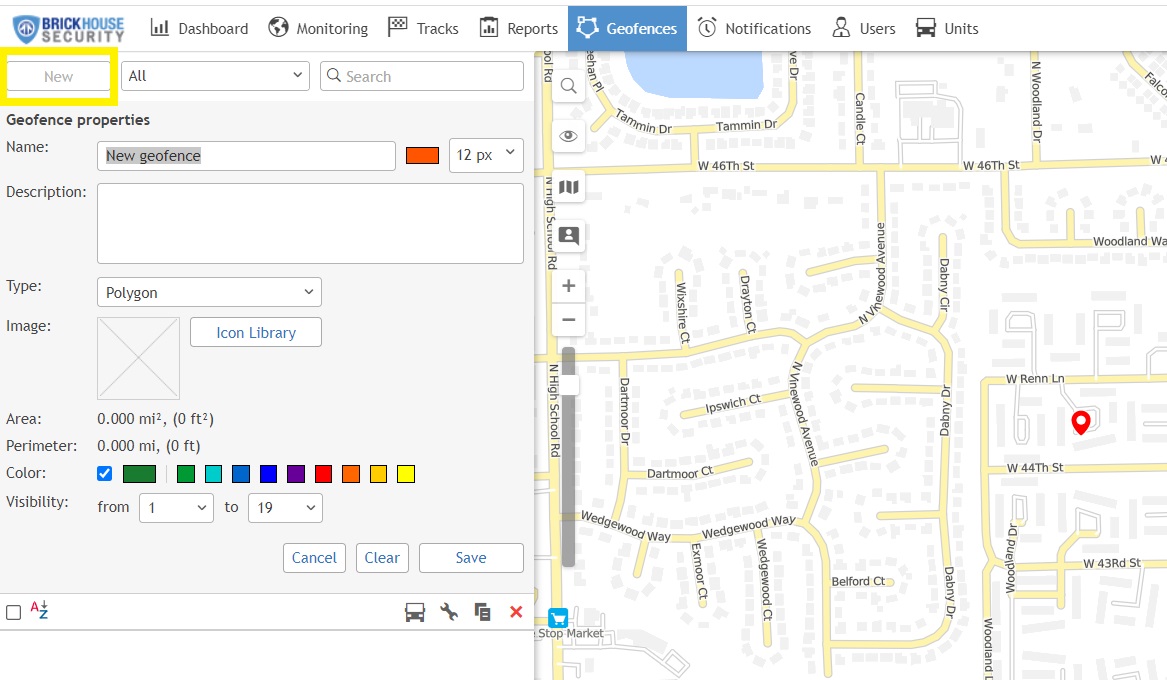
3. Click on New in the menu and give your geofence a clear name and description. It will be helpful when you receive alerts, as you will know which geofence is being triggered and can find the vehicle quickly.
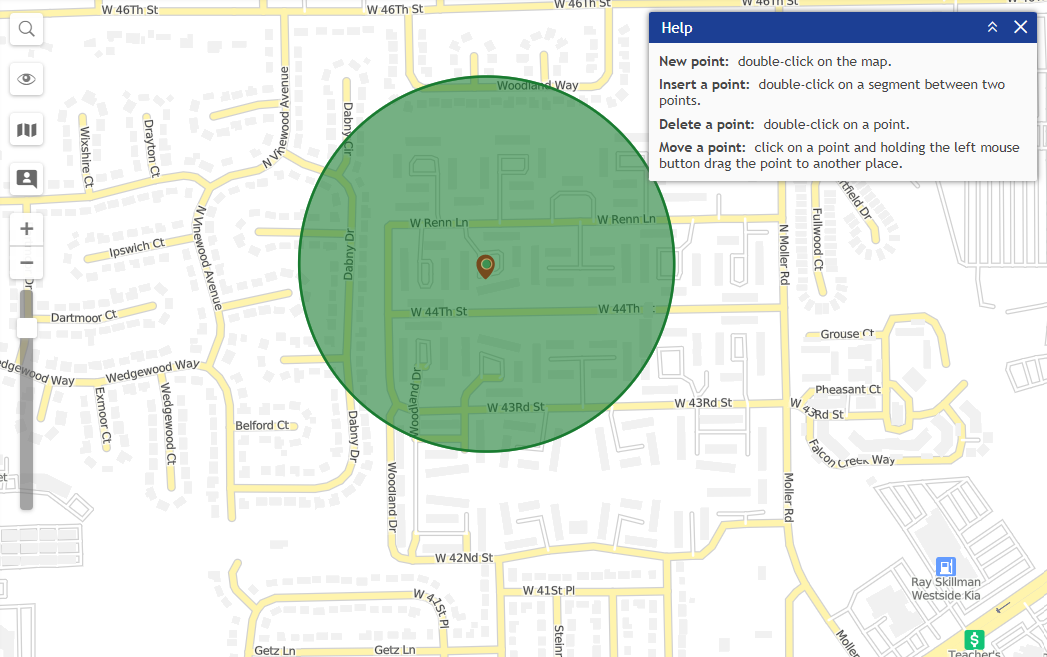
4. After clicking the New button, a help window appears to provide you with instructions about drawing geofences. Choose a geofence type on the left: line, polygon, or circle.
Map a geofence. Here are the basic rules for mapping a geofence:
- Double-click on any place on the map to put the first point. Then add more points using the same method. Put the points as close or as far from each other as you want.
- Double-click on a segment between them to insert a point between two other points.
- To move a point to another place, click on it and holding the left mouse button, drag it to another place on the map. Then release the mouse button.
- To delete a point, just double-click on it. Note that points cannot be deleted if there are only two points – for lines, or three – for polygons.
We suggest starting with a circular geofence. Click on the spot on the map you want the geofence to be centered. You can move the center of your geofence by selecting the dot on your map, and while holding down your mouse key, drag the dot to where you want the geofence centered on the map. To increase the size of your geofence, change the number in the Radius, ft box until your geofence is the size you want.
Remember: You can zoom in on the map for more detail. The default geofence area is 100 feet.
Circle:
Line:
Polygon:
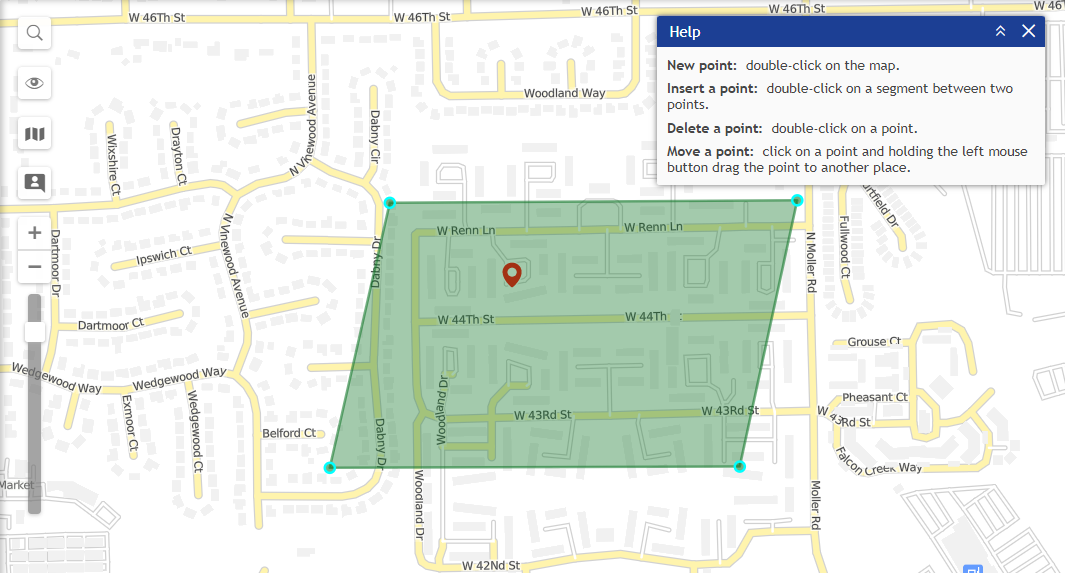
When finished, press Save. In case of a mistake, press Clear and try again. To close the create mode without saving results, press Cancel.
It is IMPORTANT that you create a notification for the newly created geofence for you to receive alerts.
Creating a new Geofence Notification
Please follow this dedicated article for setting up a notification using the new notification builder.
- Support: Locate GPS New Notification Builder
- Support: Locate GPS Notification Condition Types and Combination Rules
- Support: Configuring Notification Conditions
- Support: Setting Notification Limits and Schedules
- Support: Configuring Notification Actions
Thank you for choosing BrickHouse Security for your GPS tracking solutions. We are committed to providing you with reliable service and support.
If you require further assistance or have any questions regarding our products or services, please don’t hesitate to contact us through any of the following methods:
-
Phone: 800-654-7966
-
Live Chat: Available at BrickHouseSecurity.com
Our support team is here to help ensure you get the most out of your GPS tracking experience.
Oct 30th 2025