




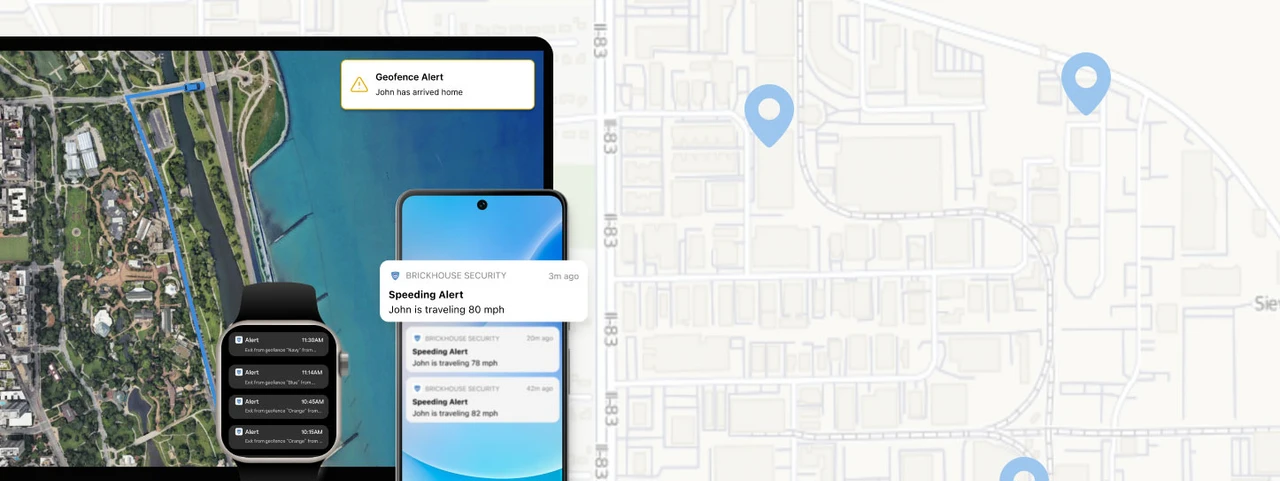


Best Selling GPS Trackers
We offer an assortment of best-sellers in our GPS tracking line. These include products trusted by personal and professional users to get the job done. Check out our most popular GPS trackers.
-

![]()
Track your assets for months at a time.
-


Track trailers and outdoor assets for years with solar power.
-


Vehicle-powered GPS tracker is hardwired for continuous, uninterrupted…
-


Plug-and-play design can easily move from one vehicle to another
-


Monitor driver behavior and road conditions LIVE
-
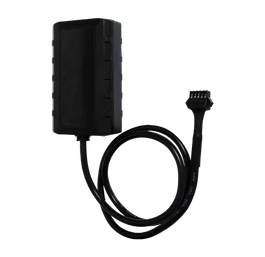
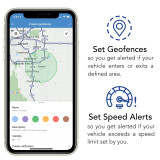
All-Terrain, All-Season GPS Tracker for hauling and powersports.
-


Smallest and most versatile mini GPS tracker available.
-


GPS and Wi-Fi connections keep this tracking both indoors and out.


Trusted by Professionals Since 2005

No Contracts Required
Our solutions come with no contracts or hidden fees, giving you the flexibility to use GPS tracking how and when you need it.
2-Day Replacement Guarantee
We stand behind our products with a lifetime warranty and a 2-Day Replacement Guarantee. If your device needs a replacement, we’ll send one fast to keep you protected.


Pays For Itself
Our GPS trackers pay for themselves by improving efficiency, preventing theft, and streamlining operations. Whether it’s recovering stolen property or optimizing fleet performance, you’ll save time and money.
GPS Trackers
BrickHouse Security offers a full line of GPS tracking devices designed in a wide range of types: from portable battery-operated devices to fleet tracking devices that can be plugged in or professionally installed in your company vehicles to heavy-duty products like our satellite trackers for monitoring equipment and shipping containers in transit.
Why Choose BrickHouse?
We are a leader in providing professional GPS tracking, dash cams, IoT and Fleet Management solutions and we take what we do seriously, selecting only the best products that have been thoroughly vetted by our team. We deploy top advisors to provide exceptional services to our customers, no matter what you need. Whether you have questions about our products or platform, need help choosing the right GPS solution for your vehicles and assets, or are looking for assistance with troubleshooting a device you own, we are here for you, 24 hours a day, 7 days a week.
20 Years
Trusted by professionals
since 2005
Money Back Guarantee
30-Day
Top Rated
BBB A+ / 30k Reviews
Human Experts Standing By
Call, text, or email us
No Contracts
Cancel any time
Our Customers Love Us, and the Feeling Is Mutual
“Fast, Friendly And Reliable Products. From Online Chat To Friendly Helpful Phone Service BHS Has My Business!”
“Great Products, Fast Turnaround, Good Customer Care. I'll Be Back For More. Thanks”
“Always A Great Shopping And Service Experience.”
“Love Your Site. So Informative!!! I Wouldn't Look Elsewhere For These Types Of Products.”
Blog and Resources
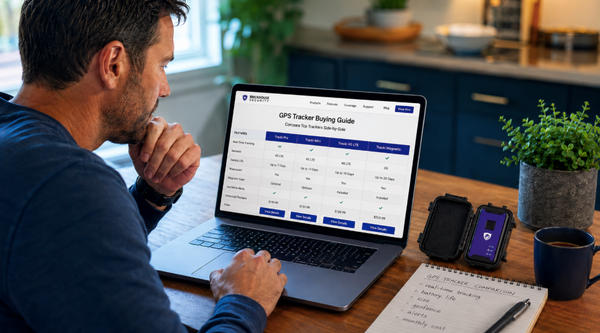
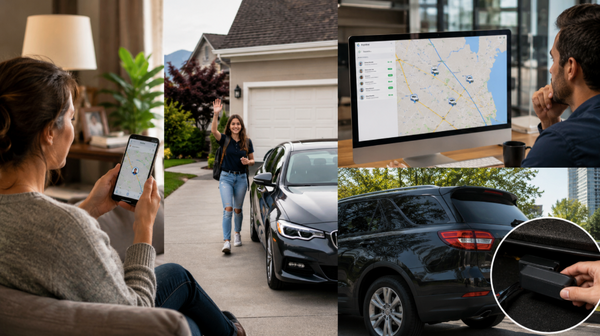
Ultimate Guide to the Best GPS Tracker for Your Needs in 2026
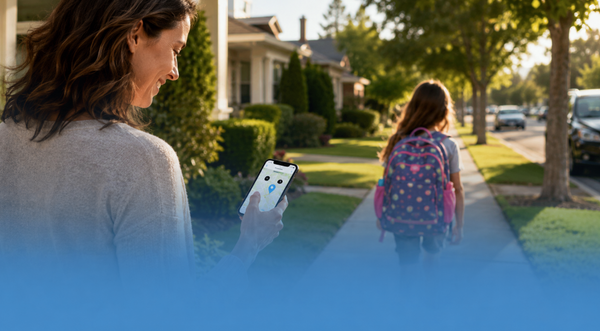
Best GPS Tracker for Kids Without Phone: Safe and Reliable Options
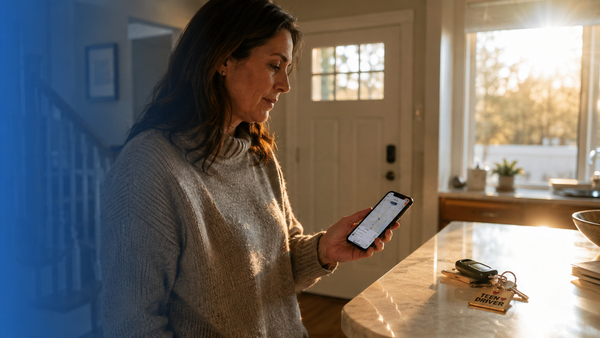
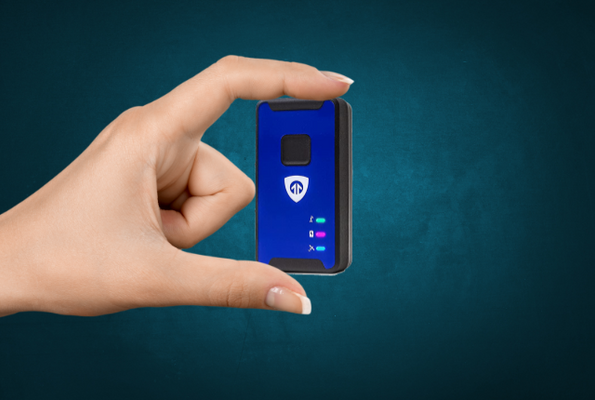
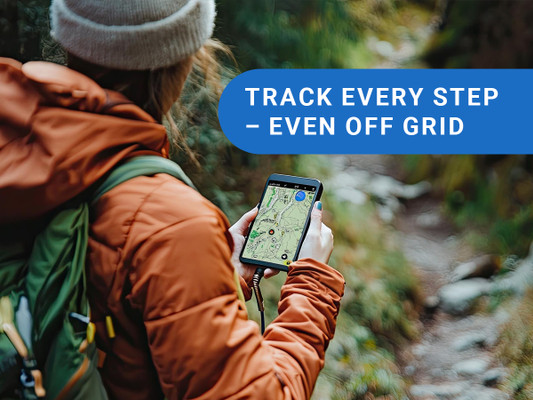
Best GPS Tracking for Hikers: Essential Tools for Safe Adventures
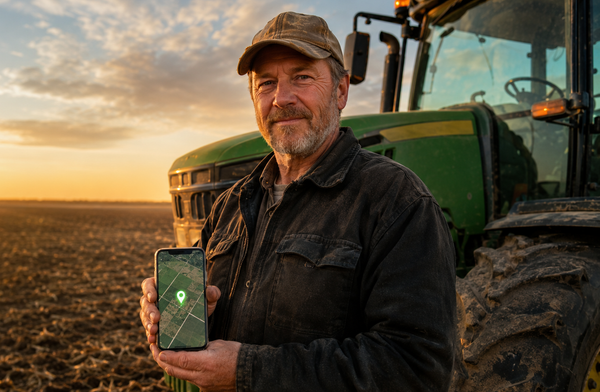
Best GPS Tracker for Farm Equipment: Safeguard Your Investment Today
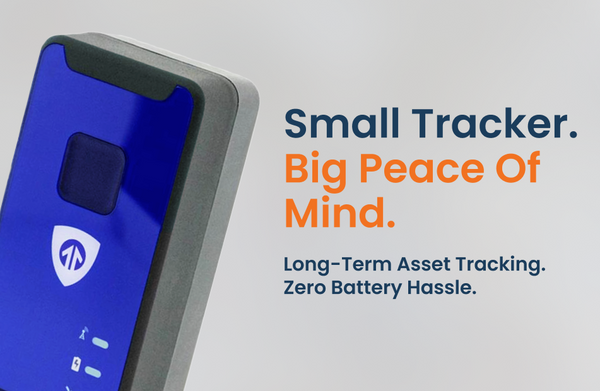


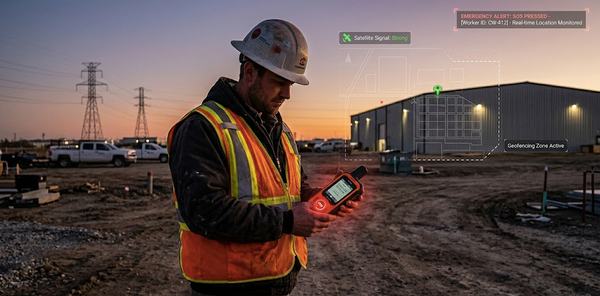
Essential GPS Tracker for Lone Workers: Ensuring Safety and Security
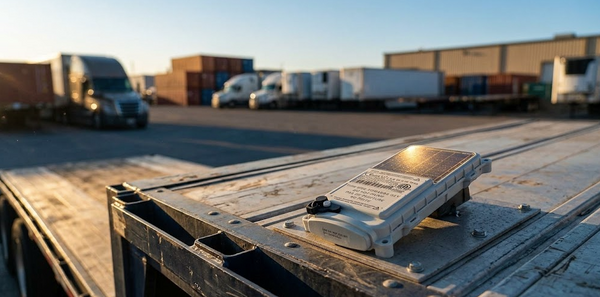
Discover the Benefits of a Reliable Solar GPS Tracker for Your Assets

Top GPS Tracker for Luggage: Ensure Your Bags Are Safe and Secure

How Do I Track My Car With a Tracker?: Easy Steps for Accurate Monitoring
Car Accessories: Best for Every Need - Top Picks to Upgrade Your Ride
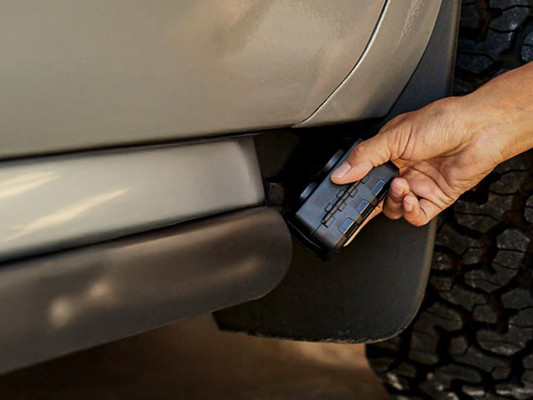
Best Hidden GPS Tracker for Car: Best Options for Ultimate Security
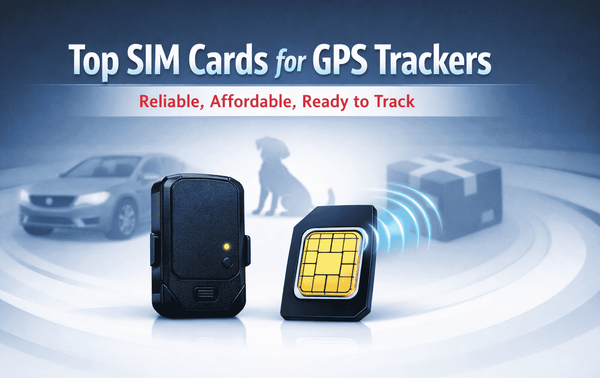
Best SIM Card for GPS Tracker: Affordable Options for Reliable Tracking


Best GPS Tracker for Android Phone: Top Recommendations for 2026
BrickHouse Industry Solutions
BrickHouse Security supports a wide range of professional applications, providing security solutions for a variety of industries, including corporations, retail, healthcare, education, law enforcement, government, and more. Whether you need GPS trackers for your fleet of vehicles, surveillance cameras to deploy in your multi-location franchise, custom security tools for loss prevention, or anything in between, our team of professionals has you covered.
